
Brackets
11/14/25About 2 min
Brackets
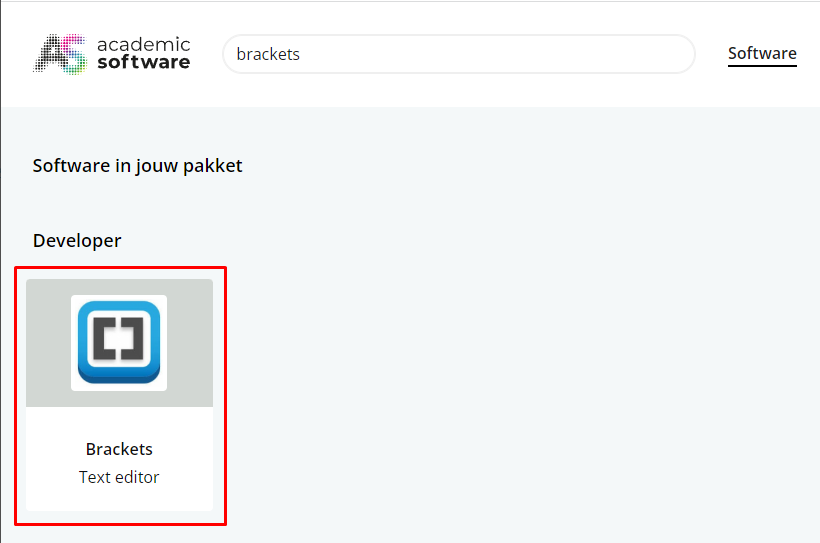
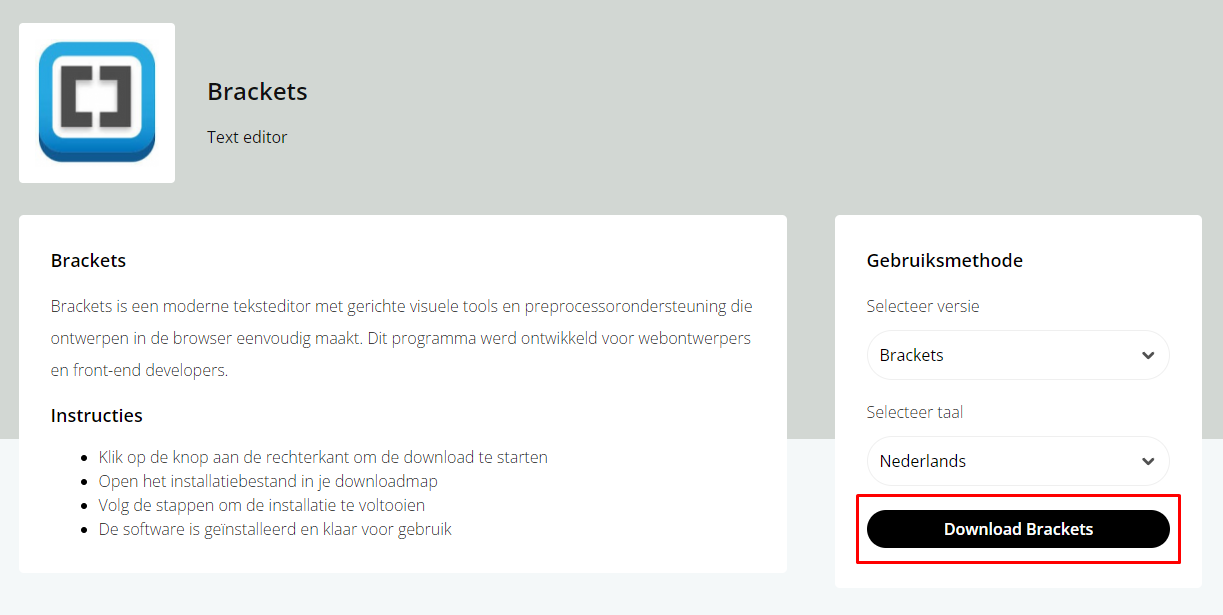
- Download from Academic Software :
REMARK
- To get the latest version, you can download the editor from the Brackets website.
Installation
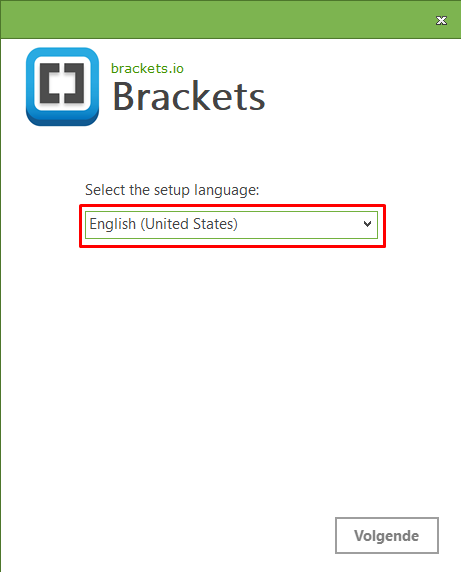
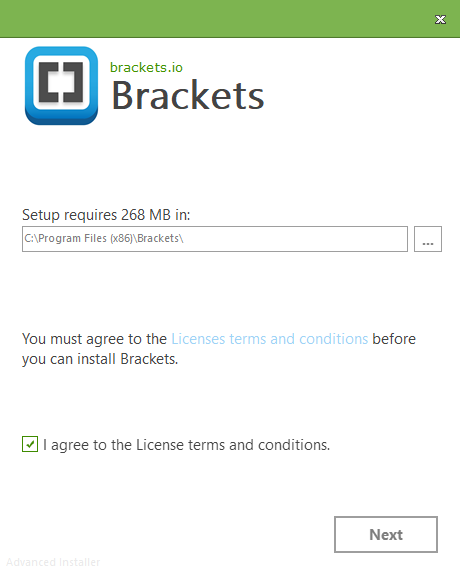
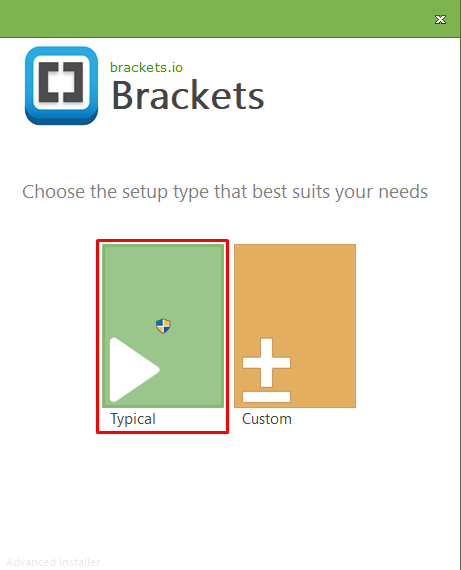
- Open the installation file you just downloaded (Brackets.Release.xxx.exe) to install Brackets in English with the default settings
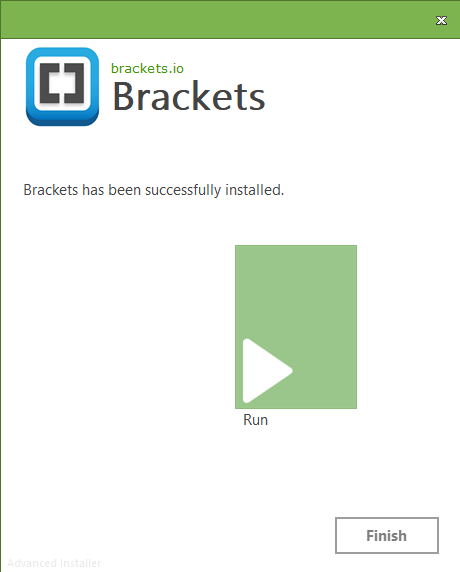
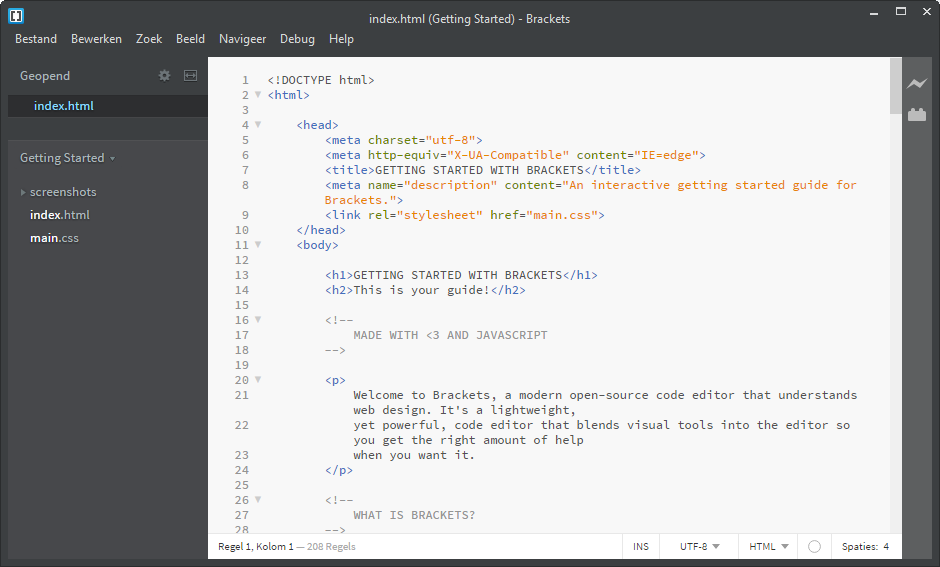
- Open Brackets
Settings
REMARK
Language
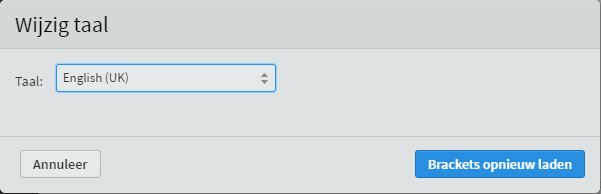
- If Brackets is installed in Dutch, please change the language to English (UK) via Debug > Wijzig taal (change language)
Extensions
- Brackets extensions are tools/functionalities we can import in Brackets to make our life as a web developer much easier
- Choose File > Extension Manger... or click the Extension Manager icon
 in the right pane to open the Extension Manager
 - Install the following extensions:
- Emmet
- Beautify
- Color Highlighter
- Install all 3 by searching for them
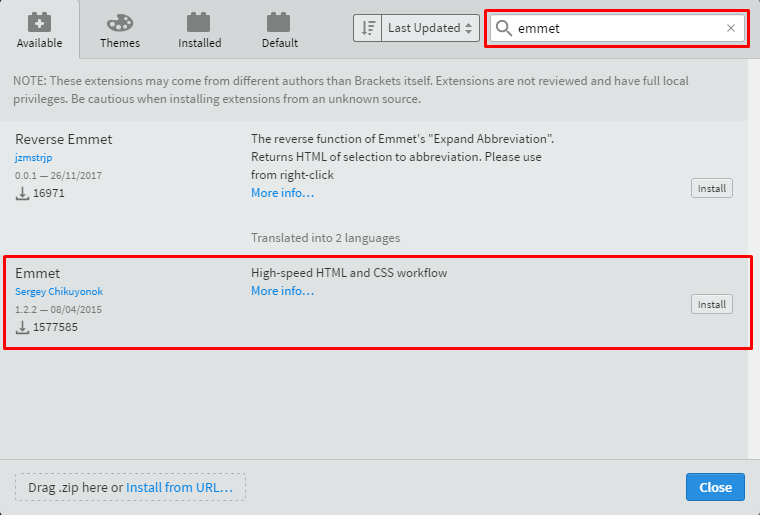
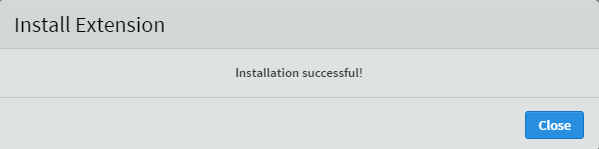
Emmet
- Emmet is a plugin for many popular text editors which greatly improves a webdesigner's workflow by (amongst other things) providing abbreviations, allowing you to type less code
Beautify
- Beautify is an extension for Brackets that formats your HTML, CSS and JavaScript source code
- To (re)format your code
- Go to Edit > Beautify (or use the shortcut
CTRL+ALT+B) - Click the Beautify icon
 in the right pane
- Go to Edit > Beautify (or use the shortcut
- Alternatively, by checking Edit > Beautify on Save, Beautify can be enabled to run automatically on save

Color Highlighter
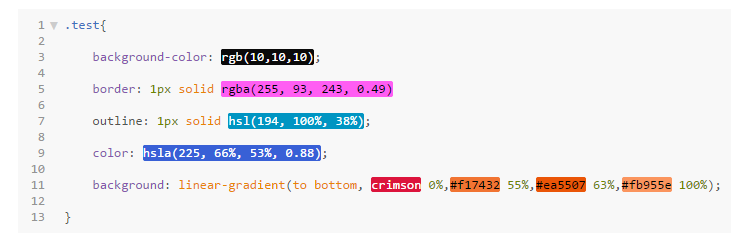
- Color Highlighter is a plugin that highlights a coded color (name, rgb, rgba, hexadecimal, ...) with the actual color:
Features
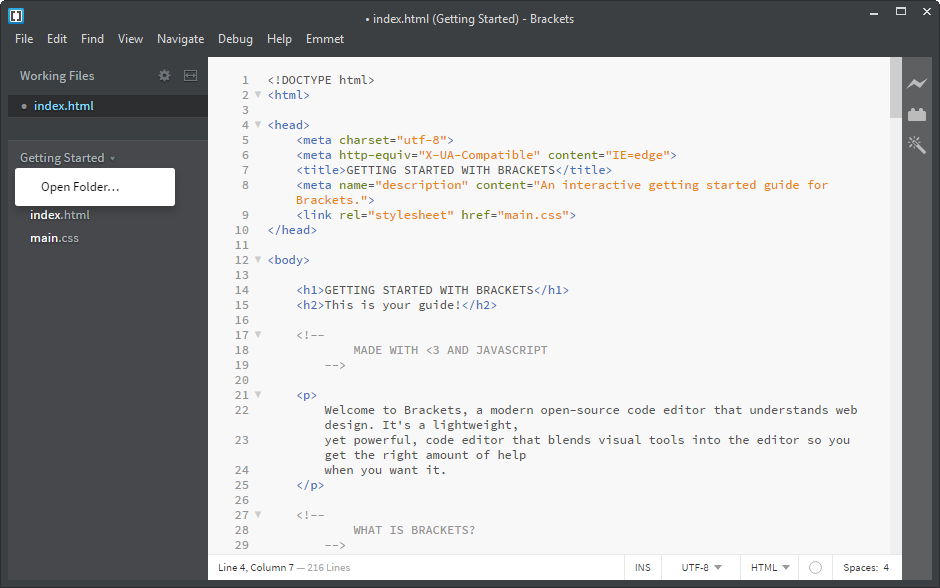
- In the left pane, you get an overview of the files that are open (Working Files), as well as the working directory (Getting Started)
- You can change the working directory to any directory of choice by clicking on it
Live preview
- This feature enables us to see the changes in the browser as soon as we edit the code (even without saving)
- Make sure a HTML-file is open (active), and go to File > Live Preview, use the shortcut
CTRL+ALT+Por click the Live Preview icon
You can split the Brackets window (vertically or horizontally) using the icon
 at the top right of the left pane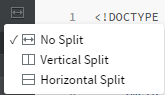
- As such, you can simultaneously view/edit different (HTML and CSS) files
- You can move files from the top to the bottom pane (or from the left to the right pane) or vice versa by clicking the icon besides the file name:

Shortcuts
| shortcut | action |
|---|---|
CTRL+ALT+B | Beautify code |
CTRL+ALT+P | Start Live Preview |
CTRL+SHIFT+A | Surround code with ... |
CTRL++ | Increase font size |
CTRL+- | Decrease font size |
CTRL+/ | One line comment |
CTRL+SHIFT+/ | Multi line comments |
CTRL+E | Quick edit CSS style on element |
CTRL+click | Multi cursors |